Rider Pro access and two to four recorded laps on the same track layout, from your own or shared sessions. 3D requires a supported track model; available channels depend on the recordings.
Open the lap comparison
To watch just one lap, use the single-lap replay guide. The steps here open several laps together.
- Open a Pulse session from Racing → Sessions and go to its lap list. For a coach’s or friend’s recording, the session must already be shared with your account. Use Shared in the lap selector to find available shared sessions and their laps.
- Select two to four laps on the same track layout, then choose Compare laps. Start with two if you want to keep the first comparison easy to follow. Additional laps are useful when checking whether a difference repeats.
- Check the lap cards and the REF marker. Confirm that the dates and lap numbers match your selection. The lap marked REF is the reference for the time differences shown on the other cards and the time-delta graph.
The comparison is open when the selected laps appear with their coloured paths and available graphs. Match each card’s colour to its path before following a difference around the circuit. You can begin reviewing in this 2D view; the 3D and playback options below are optional.
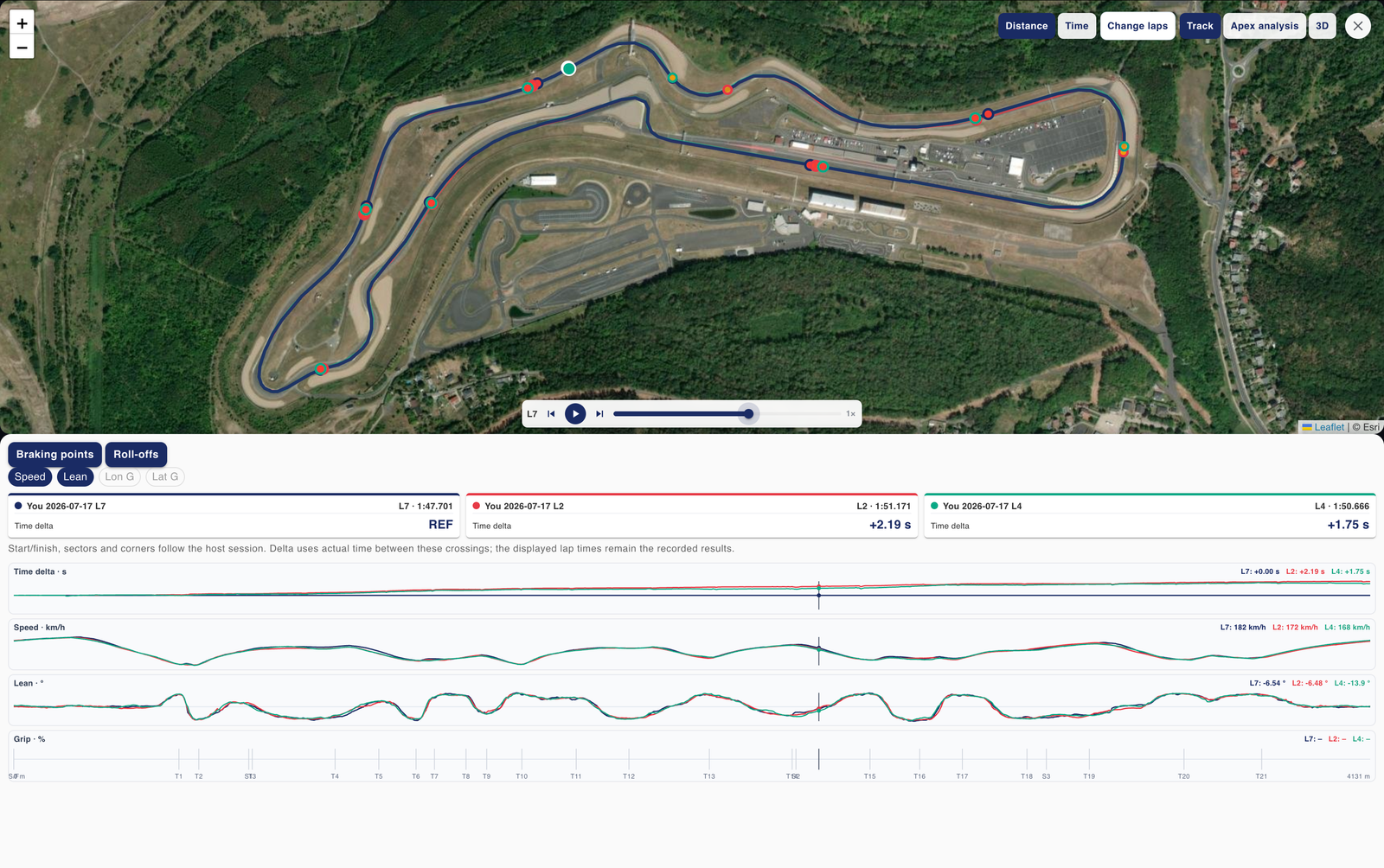
Watch the selected laps in 3D
- Choose 3D. This view requires a supported model of the track layout. The selected rides appear together on the circuit, with available telemetry below.
- Choose the camera’s subject under Follow. Select the lap you want to watch from. Chase follows that motorcycle from behind; Onboard gives a virtual rider’s view; Aerial helps you examine the paths across the track width.
- Press Play and use Speed to adjust playback. Slow down or pause when a difference passes too quickly to follow. Keep the lap colours in view to connect each motorcycle with its readings.
Check the lap shown under Follow when changing your viewpoint, and check REF when reading a time difference. Follow selects the camera’s subject; REF identifies the timing reference. They serve different purposes.
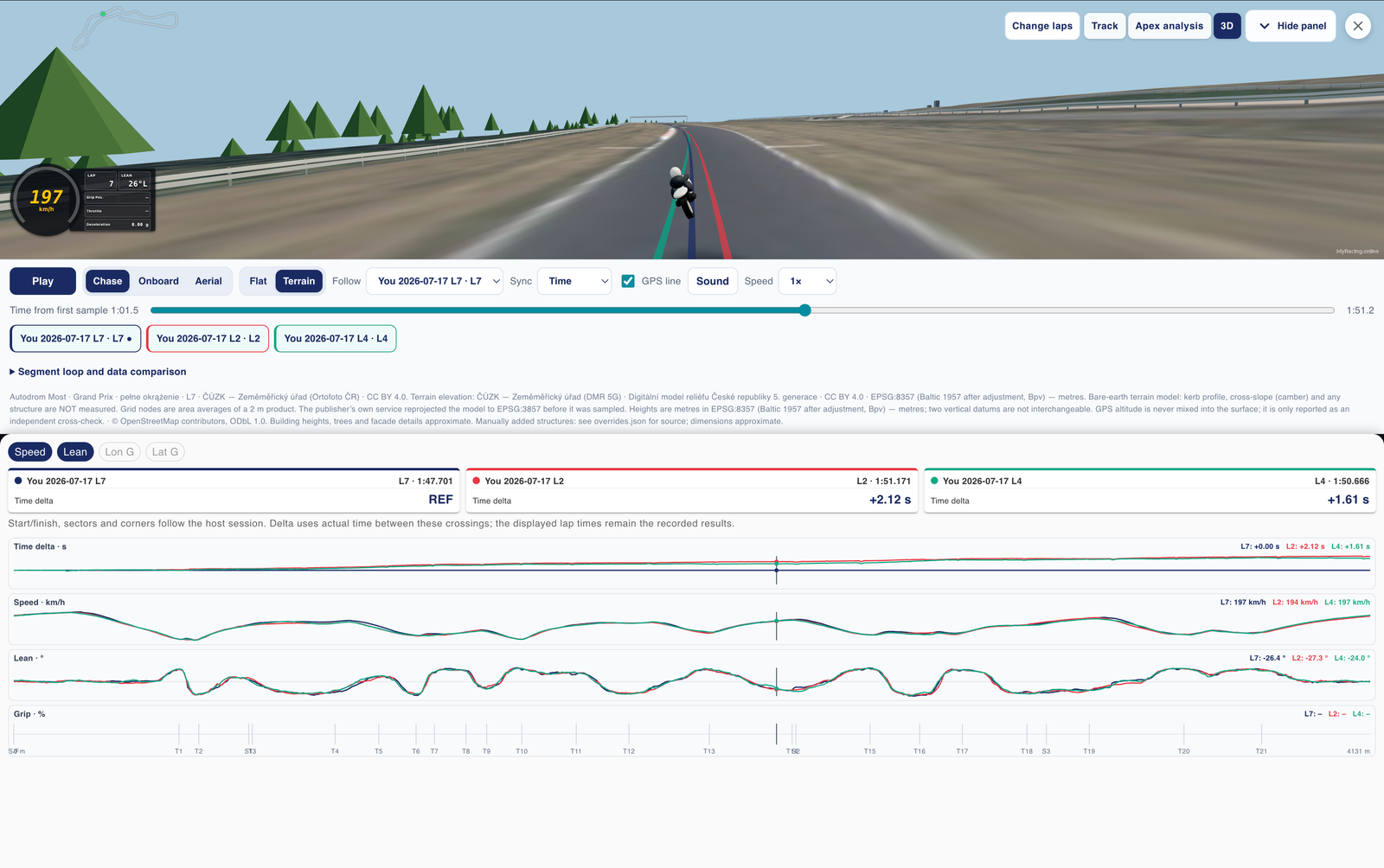
Choose how the rides line up
In 3D, use Sync to choose Time or Distance. Time follows the rides against elapsed time, so you can watch a gap develop. Distance aligns their progress along the lap, which helps when comparing readings through corresponding parts of the circuit. The 2D comparison also has time and distance controls.
To revisit one passage, expand Segment loop and data comparison. Choose a corner or set an A–B segment using the panel’s segment controls, then enable repeat. The before/after margins let you include the approach and exit. Check that playback returns to the beginning of the intended passage; adjust the segment if it cuts off the part you want to examine.
If a view or reading is missing
- A shared lap is absent: confirm that the owner has shared the session with your account, then look under Shared. Choose laps from the same track layout for the comparison.
- 3D is unavailable: the layout needs a supported 3D model. Continue with the 2D comparison to examine paths and the available graphs.
- A channel has no values: compare only readings present in the recordings. A missing grip trace, for example, does not mean the rider used no throttle.
For a throttle question, Grip or Grip Pos. is the recorded throttle-grip position; Throttle is the separate opening reported by the ECU. Deceleration includes engine braking and does not measure brake-lever pressure. GPS quality affects the precision of the paths, especially when their separation is small.
You should now have the intended laps in view, know which one supplies the time reference and be able to return to the passage you want to inspect. The articles on corner comparison and braking consistency explain those analyses in more detail.